SOVA
WATCHING FOR YOU
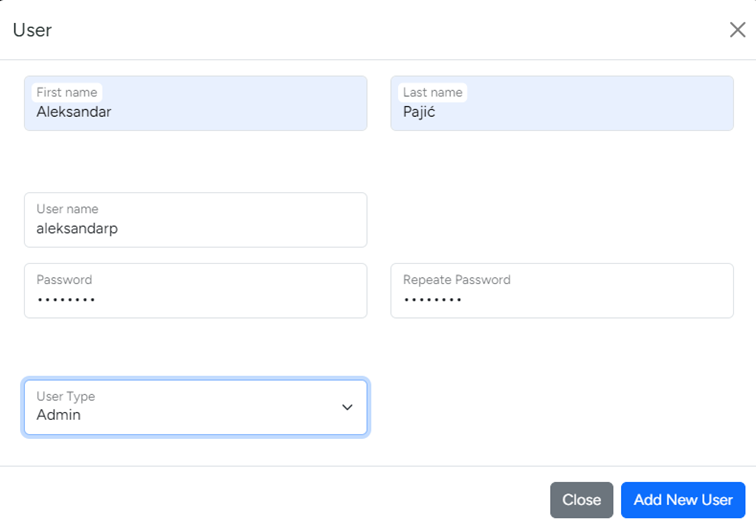
Creating a User
- In the left-side menu, open the “Users” option.

- Click on the “Add User” button.
- Fill in the information in the form and select the user type.
User types are:
Admin: Has full control over the application. Can create new users, add airports and
airlines, create SOVA, periods, etc.
Agent: Can add and view periods but does not have the right to create SOVA.
Adding an Airport
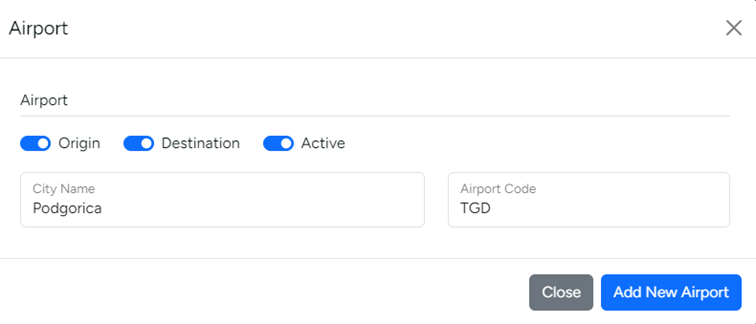
- In the left-side menu, open the “Airport” option.

- Click on the “+ Add Airport” button.
- Enter the airport name and code.
Select whether the airport will be active and specify if it is an “Origin” or a “Destination”. These options will be visible when creating “SOVA”.
Adding Airlines
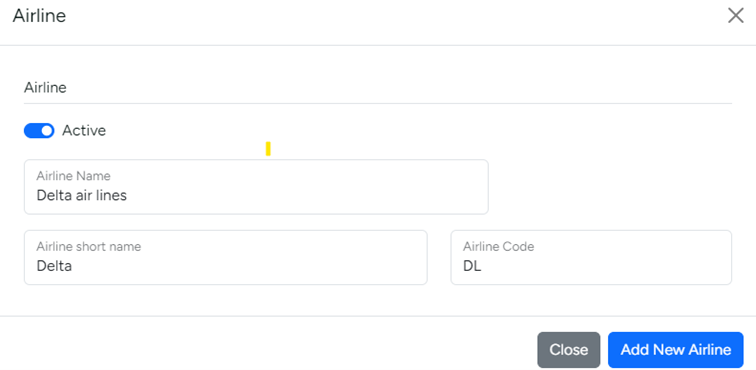
- In the left-side menu, open the “Airlines” option.
- Click on the “+ Add Airline” button.
- Enter the airline’s name, short name, and code.
Creating a SOVA
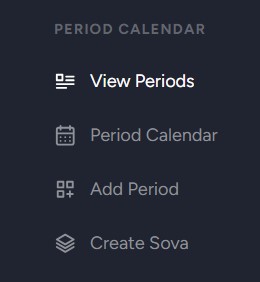
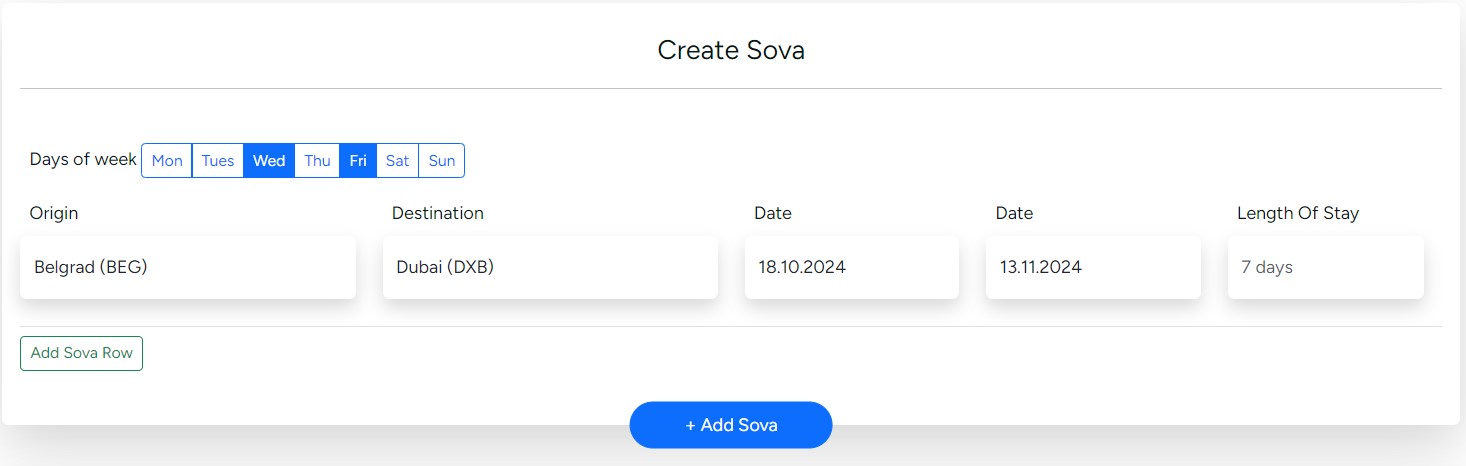
In the left-side menu, open the “Create Sova” option.
Select the origin, destination, start date of travel, end date of travel, length of stay, and days of the week you will be traveling.

Adding a Period
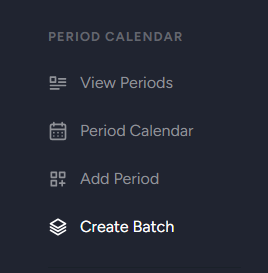
In the left-side menu, open the “Add Period” option.
In the “Add Period Calendar” table, select a created SOVA from the list of active SOVA.
Choose the dates, optionally select a specific carrier or leave it as “All,” determine the number of results per day, and set the number of stopovers (0, 1, 2).
Click on the “+ Add Period” option.

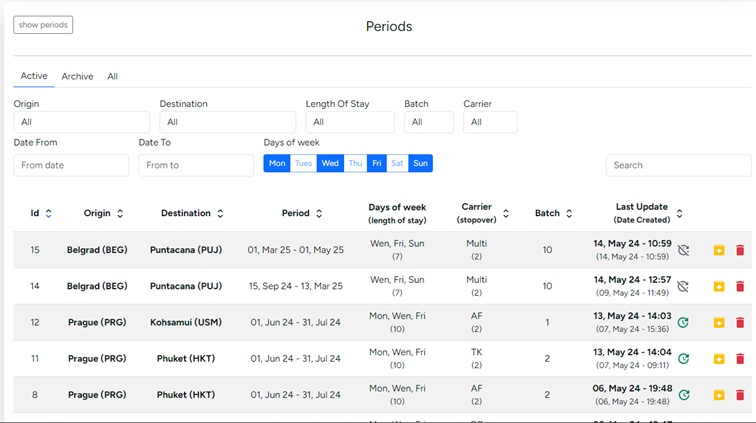
Above the periods, there are filters for quickly searching a specific period.
NOTE: To ensure you always have fresh results and prices, it’s important to update the period each time by clicking the “Update period” icon.
Additionally, if needed, you can archive a period by clicking the “Archive” link.
Period Overview
From the left-side menu, open the “View Periods” option.
At the top of the page, there are filters that allow you to quickly search for periods.
You can swiftly find all periods according to various search criteria.
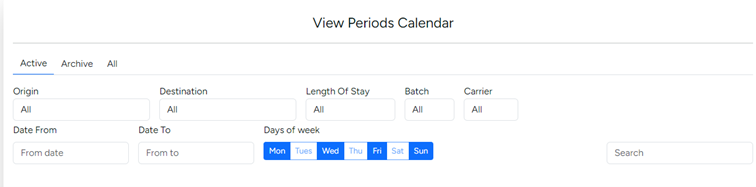

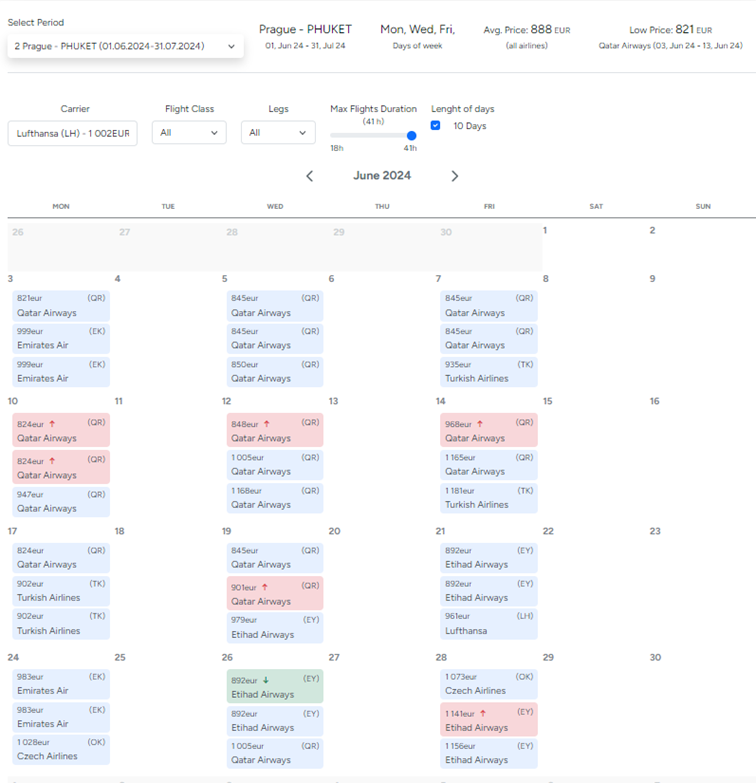
Graphical view of periods:
At the top, all search filters are displayed, and below them is a graphical representation with prices and a legend.
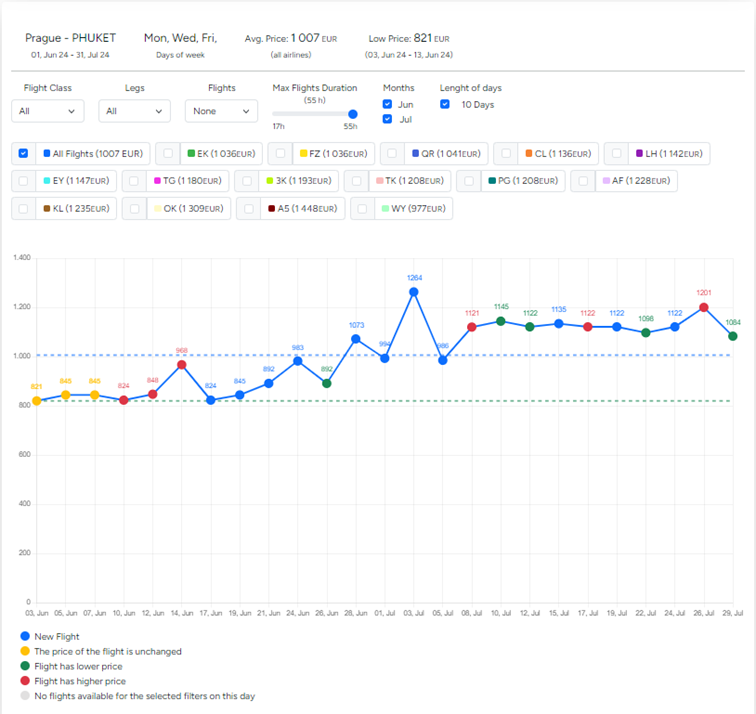
Calendar view of periods: